
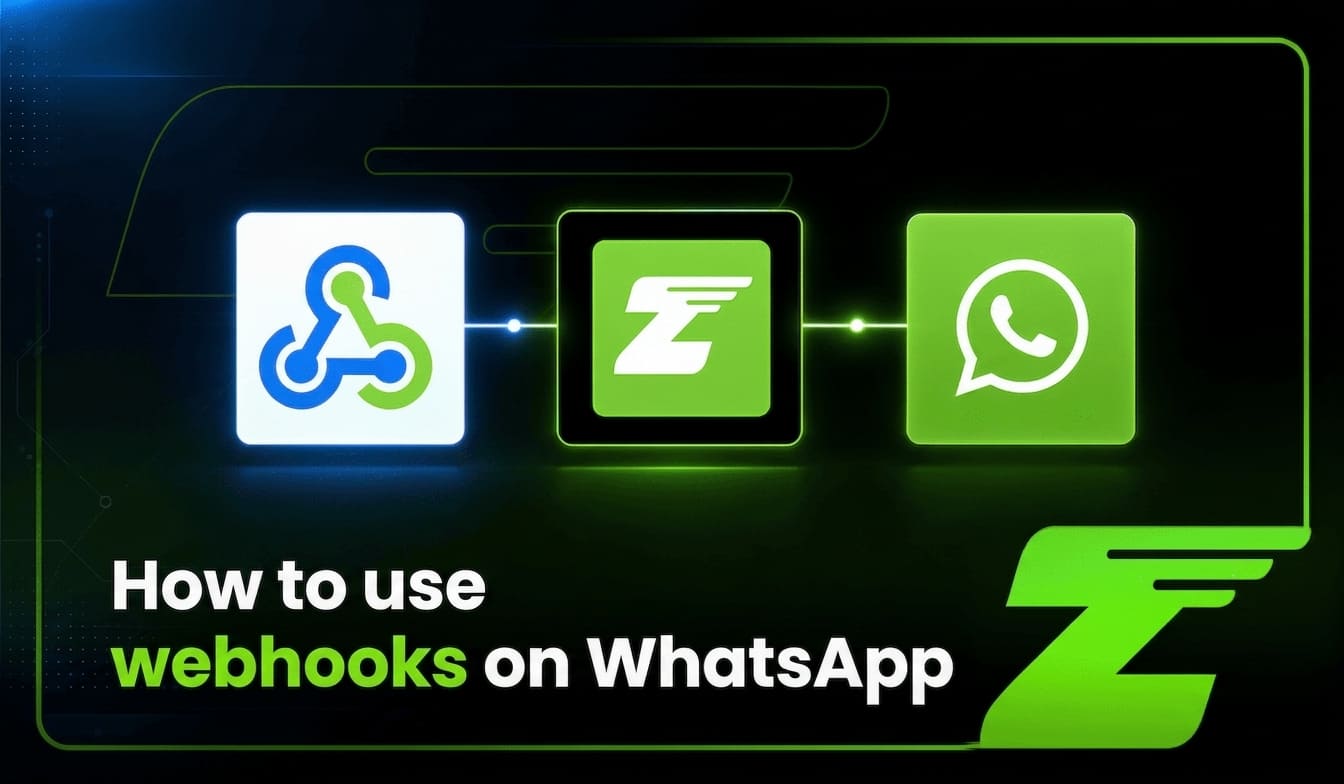
There is one technical feature that makes automation smarter and more efficient: WhatsApp webhooks.
In practice, webhooks are what allow your system to know, in real time, that a new message has arrived. Without them, your integration is effectively blind: it does not know when a customer has sent a message, cannot respond automatically, and cannot trigger workflows that depend on user interaction.
A webhook is a mechanism used on the internet to let one application communicate with another, sending data in real time whenever a specific event occurs.
This allows two systems to exchange information without requiring any external action.
Whenever the connected number receives or generates an interaction, Z-API sends a POST request to a previously configured URL, with a JSON body specific to that event type.
In this article, we will take a closer look at how Z-API webhooks work, which ones are available, how to configure them, and how to use them to build reliable real-time automations.
What are WhatsApp webhooks, and what role do they play in automation?
Before getting into the technical details, it is worth reinforcing the core concept: a webhook is a URL on your server that Z-API automatically calls whenever an event occurs on the instance.
When a message is received, when a sent message is delivered, when the instance disconnects, or when a chat status changes, Z-API sends an HTTP POST payload to the URL you configured with the details of that event.
The difference between polling and webhooks is essential to understanding why webhooks are the right model for WhatsApp automation:
- Polling: your system periodically asks the API, “Is there a new message?” Every 5, 10, or 30 seconds, a request is sent. Most requests return nothing new, and when a message finally arrives, the system only finds out during the next check. This creates response delays, unnecessary resource consumption, and scalability issues in operations with many instances.
- Webhook: reverses this logic. Your system does not need to ask. Z-API notifies it at the exact moment the event occurs, with no need for repeated requests and regardless of how many instances are active.
For automations that need to respond in real time, such as customer service, lead qualification, and bidirectional notifications, this difference can determine whether an integration feels responsive or frustrating.
One important point from the official documentation: you do not need to configure every webhook. But the more control you have over your instance, the more functionality you can use and the more value you can build with Z-API. Configure the ones that make sense for your use case, then expand as your operation evolves.
The webhooks available in Z-API
Z-API documentation organizes WhatsApp webhooks into four main types, each with a specific role:
Delivery (On Send)
The delivery webhook tells you that your message was delivered to WhatsApp. Important: this does not necessarily mean the contact received it. To track receipt and read status, you need to monitor the status webhook.
The endpoint used to configure this webhook is:
PUT https://api.z-api.io/instances/{instanceId}/token/{token}/update-webhook-delivery
The webhook payload includes the following fields:
- phone: destination phone number
- zaapId: message identifier within the conversation
- messageId: WhatsApp message identifier
- instanceId: instance identifier
- momment: timestamp in milliseconds for when the event was triggered
- type: event type, in this case
DeliveryCallback - error: only present when an error occurs and contains a description of the sending issue
Example of a successful response:
{
  "phone": "554499999999",
  "zaapId": "A20DA9C0183A2D35A260F53F5D2B9244",
  "messageId": "A20DA9C0183A2D35A260F53F5D2B9244",
  "instanceId": "instance.id",
  "momment": 1777494009341,
  "type": "DeliveryCallback"
}
This webhook is especially useful for systems that need to confirm that the message reached WhatsApp before triggering the next step in a workflow, such as updating a CRM status or moving to the next stage in an automation.
To see all return examples for different situations, including error scenarios, check the On Send response examples page in the official documentation.
Receive (On Receive)
This is the most commonly used webhook in automation. It is called every time someone interacts with the connected WhatsApp number — in other words, every time a message arrives.
The endpoint used to configure it is:
PUT https://api.z-api.io/instances/{instanceId}/token/{token}/update-webhook-received
An important detail from the documentation: this webhook can also be triggered when the instance is configured to notify messages sent by the connected number itself. We will cover this later in the section about update-notify-sent-by-me.
Another relevant point for teams working with media: media files such as images, documents, and audio remain available in Z-API storage for 30 days.
After that period, the files are removed. This should be considered in architectures that depend on delayed media processing.
The receive webhook supports all WhatsApp message types.
To see payload examples for different message types, including text, image, audio, document, location, contact, poll, and buttons, check the On Receive response examples page in the official documentation.
Status
The status webhook notifies your system about every status change a message goes through: whether it was received, read, replied to, or deleted.
An important point from the documentation: the same message can move through several statuses and may even receive the same status more than once, as can happen with “replied”.
This means your system needs to be prepared to receive multiple status events for the same message and handle them according to the correct business logic.
This webhook is essential for systems that need to know whether the customer has read a message before triggering the next step, such as sending an automatic follow-up only to contacts who have not read it, or updating the CRM once the message is confirmed as read.
Disconnected (On Disconnect)
This webhook is called whenever Z-API detects some kind of communication unavailability, whether between the phone and WhatsApp or between the phone and Z-API.
For production operations, monitoring disconnection events is essential, because an undetected disconnected instance can mean messages are arriving but not being processed, causing the operation to stop without anyone noticing.
With the disconnection webhook configured, your system receives the alert immediately and can trigger a reconnection process automatically.
How do you configure webhooks in Z-API?
Z-API documentation provides two ways to configure webhooks:
Through the dashboard
Go to the admin dashboard. Under Instances, click the view icon for the desired instance, then open the three-dot menu and select “edit.” The webhook field appears on the instance edit screen.
Through the API
Each webhook has its own configuration endpoint using PUT. You pass your system URL in the value field of the request body.
One critical point from the documentation: Z-API does not accept webhook URLs that do not use HTTPS. Before configuring any webhook, make sure your endpoint has a valid SSL certificate.
During local development, tools such as ngrok can be used to create a temporary HTTPS tunnel for testing.
Update all webhooks at once
For teams that want to point all webhooks to the same URL in a simpler way, Z-API provides a dedicated endpoint:
PUT https://api.z-api.io/instances/{instanceId}/token/{token}/update-all-webhooks
The request body accepts two fields:
{
  "value": "https://your-system.com/instance/YOUR_INSTANCE/webhook",
  "notifySentByMe": true
}
The value field defines the URL for all webhooks. The optional notifySentByMe field enables webhook notifications for messages received and sent by the connected number itself, which we will cover in the next section.
This endpoint is especially useful during initial setup or when you need to migrate all webhooks to a new URL without calling each endpoint individually.
The notifySentByMe feature: what it is and when to use it
This configuration deserves special attention because it changes the default behavior of the receive webhook.
By default, the On Receive webhook only notifies your system about messages sent by other people to your number. When notifySentByMe is enabled, it also notifies your system about messages sent by the connected number itself.
The endpoint to configure this separately is:
PUT https://api.z-api.io/instances/{id}/token/{token}/update-notify-sent-by-me
With the following body:
{
  "notifySentByMe": true
}
An important note from the documentation: for this feature to work correctly, an On Receive webhook must already be configured. Otherwise, there is nowhere for those notifications to be delivered.
When does this feature make sense?
In multi-agent customer service systems, where different agents send messages using the same number, enabling notifySentByMe allows the system to log every outgoing message, regardless of who sent it.
This ensures that the CRM conversation history remains complete, including messages sent by the company to the customer.
In audit-focused architectures, where all communication through the number needs to be recorded, this feature ensures that no message is missing from the log.
In synchronization systems involving multiple devices, notifySentByMe allows the system to know what was sent in each session and keep state consistent.
You may also want to read: How to integrate a WhatsApp API with your CRM.
How to configure the receive webhook: step by step
Here is the complete flow for getting the receive webhook running in production:
1. Create the endpoint in your system
Your server needs to expose an HTTPS URL that accepts POST requests. This endpoint receives Z-API payloads and needs to return status 200 to confirm receipt.
2. Configure the URL in Z-API
Send a PUT request to the configuration endpoint with your system URL:
PUT https://api.z-api.io/instances/{instanceId}/token/{token}/update-webhook-received
Body:
{
  "value": "https://your-system.com/instance/YOUR_INSTANCE/receive"
}
3. Process the incoming payload
When a message reaches the connected number, Z-API sends a POST request to the configured URL with the message payload. Your system extracts the relevant fields, processes the message, and executes the corresponding business logic.
4. Enable notifySentByMe if needed
If your use case requires notifications for messages sent by the connected number as well, configure:
PUT https://api.z-api.io/instances/{id}/token/{token}/update-notify-sent-by-me
Body:
{
  "notifySentByMe": true
}
Use cases where webhooks make a major difference
Once WhatsApp webhooks are configured correctly, several production-ready use cases become possible:
Real-time customer service with an AI agent
The receive webhook is the trigger behind any intelligent WhatsApp automation. When the message arrives, the payload is sent to the system, the LLM processes the content, and the response is sent back through Z-API.
Without a reliable receive webhook, the agent cannot operate in real time.
Delivery and read confirmation in the CRM
The delivery webhook confirms that the message reached WhatsApp. The status webhook confirms when it was received and read by the recipient.
By processing both events, the CRM can automatically update the actual status of each communication without any manual intervention.
Automatic disconnection detection and recovery
The disconnection webhook allows the system to immediately detect when an instance loses connection and trigger the reconnection process automatically, minimizing operational downtime.
Complete conversation history
With notifySentByMe enabled, the system records both incoming and outgoing messages, building a complete history for each conversation that any CRM agent can access.
Bidirectional automations
A notification is sent to the customer through Z-API. When the customer replies, the receive webhook delivers that response to the system. The system processes it and automatically triggers the next step in the workflow.
The full cycle happens without human intervention.
Best practices for production reliability
Configuring the webhooks is only the first step. Making sure they work reliably in production requires a few additional practices:
Return 200 quickly
The endpoint should return status 200 immediately after receiving the payload.
If processing takes longer, send the event to an asynchronous queue and return 200 before processing it.
If the endpoint takes too long to respond, Z-API may interpret the request as failed.
Handle duplicates with idempotency
During network instability, Z-API may resend the same event.
Use the unique message identifier included in the payload to check whether the event has already been processed before executing any action.
Processing the same message twice can result in duplicate replies being sent to the customer.
Always use HTTPS
The documentation is explicit: Z-API does not accept webhook URLs that do not use HTTPS.
Make sure your endpoint has a valid SSL certificate before configuring any webhook.
Monitor endpoint health
Setting up alerts for situations where webhooks stop receiving events is essential for detecting configuration failures or infrastructure problems before they affect the operation.
Do not share your ID and token
Z-API documentation reinforces this point: never share your instance ID and token with anyone.
These credentials provide full access to the instance and should be treated as sensitive information.
Documentation resources for going deeper
For teams that want to move beyond the basics, the official Z-API documentation includes additional resources for more advanced scenarios.
The On Send response examples page covers the possible scenarios for the delivery webhook, including the different error types that may appear in the payload’s error field.
The On Receive response examples page provides payload examples for every supported message type, including text, image, audio, video, document, location, contact, poll, buttons, and more.
The webhooks introduction provides a complete overview of all available types and instructions for configuration through both the dashboard and API.
The update all webhooks endpoint is especially useful during initial setup or migrations, when all webhooks need to be pointed to a new URL at once.
Configure your Z-API webhooks and build your automations
WhatsApp webhooks are the technical foundation of any automation that needs to operate in real time.
Z-API provides a complete set of webhooks covering the key events in an operation: incoming messages, delivery confirmation, status changes, instance disconnections, and messages sent by the connected number itself.
Correct configuration, HTTPS, fast 200 responses, duplicate handling, and endpoint monitoring are the practices that turn a functional webhook into reliable long-term infrastructure.
For teams building automations with Z-API, the official documentation provides everything needed to implement each webhook accurately, from configuration endpoints to complete payload examples for every event type.
Explore the Z-API webhook documentation and test it in practice. 👉 Create your free account